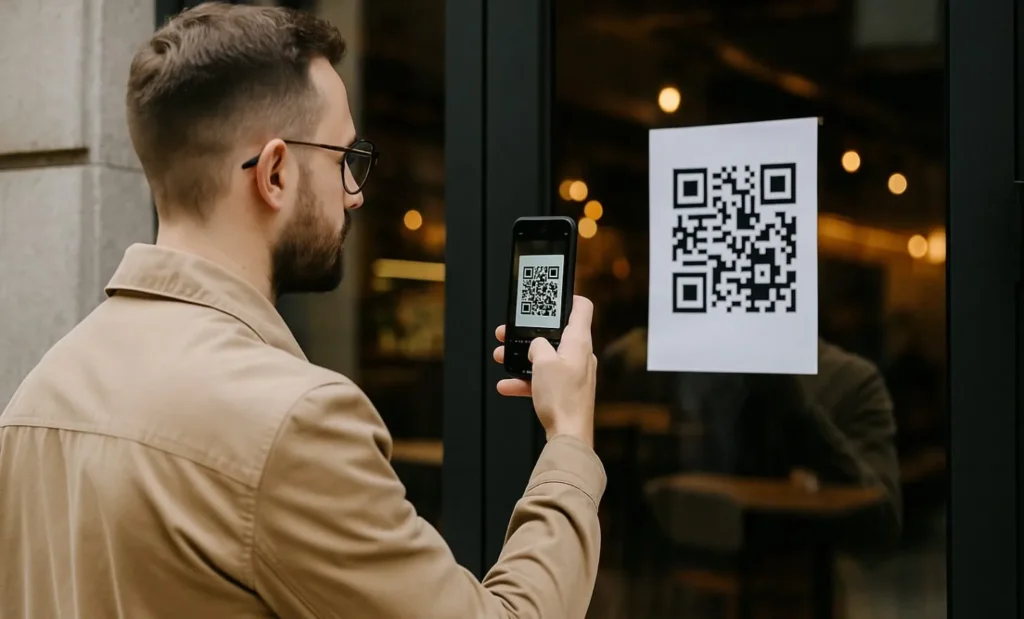
QR codes provide a quick way to connect printed materials with digital content. They are commonly found on menus, posters, tickets, product packaging, advertisements, and business documents, allowing users to access information without typing long URLs.
For people who need to scan QR codes online, a browser-based tool can be a practical option. It can be especially useful when the QR code is already saved as an image on a computer or another device.
What Is Online QR Code Scanning?
Online QR code scanning uses a web-based service to identify and decode the information contained in a QR code. Instead of installing a separate application, users can access the scanner through a compatible browser.
Depending on the service, you may be able to upload an image containing a QR code and receive the decoded information within seconds.
How to Scan a QR Code Online
The process is usually simple and does not require advanced technical knowledge. While the exact interface varies between services, the basic steps are similar.
- Open a trusted QR scanning service in your browser.
- Select the option to upload or scan a QR code.
- Choose an image containing the QR code from your device.
- Wait while the service analyzes the image.
- Review the decoded information carefully.
- If the result is a website, check the URL before opening it.
A clear, complete image generally makes the scanning process easier and more reliable.
Why Scan QR Codes Online?
Browser-based scanning can be useful when a QR code exists as a digital image rather than a physical object. For example, you may have a QR code saved in a screenshot, downloaded document, or photograph on your computer.
It can also be convenient for occasional use because you may not need to install another application simply to decode an image.
Common Uses
Online QR scanning can help when you need to:
- Read a QR code from a saved image.
- Check a QR code in a digital document.
- Decode a screenshot containing a QR code.
- Access information stored in a QR code without a dedicated app.
- Quickly identify the destination encoded in a QR code.
Use a Clear QR Code Image
Image quality plays an important role in successful scanning. A blurry, distorted, or heavily compressed QR code may be difficult for scanning software to recognize.
For better results, use an image where the entire code is visible. Avoid excessive cropping, filters, or edits that may alter the pattern.
If a scan fails, try a higher-quality version of the image or capture the QR code again under better conditions.
How to Scan QR Codes More Safely
Convenience should not replace caution. A QR code can contain a legitimate link, but it can also direct users to a phishing website or another potentially harmful destination.
Always consider where the QR code came from and review the decoded information before interacting with it.
Check the Destination
If the scanner produces a URL, examine the domain before opening it. Be cautious when the address appears unfamiliar, contains unusual spelling, or does not match the organization associated with the QR code.
Do not provide passwords, payment details, verification codes, or other sensitive information simply because a QR code directs you to a page requesting it.
Be Careful With Downloads
Some QR codes may lead to pages that encourage users to download files or applications. If the download is unexpected, stop and verify the source before proceeding.
Keeping your browser, operating system, and security software updated can also provide an additional layer of protection.
Privacy Considerations
When using an online scanner, consider what happens to the image you upload. A QR code image may sometimes be part of a larger document or screenshot that contains unrelated personal information.
Whenever possible, upload only the image needed for scanning. Reviewing the service’s privacy information can also help you understand how submitted content may be processed.
Online Scanner vs. Phone Camera
For a physical QR code, a smartphone camera may be the quickest option. Modern phones often recognize QR codes directly through the camera application.
An online scanner can be more useful when the QR code is already stored digitally. The best method therefore depends on whether you are working with a physical code or an image file.
Final Thoughts
Online QR scanning can be a convenient way to decode QR codes without installing additional software. With a clear image and a compatible browser, users can quickly identify the information stored in a QR code.
The most important safety step is to review the result before following a link or providing information. By combining a reliable scanning method with careful checking, you can use QR codes more conveniently while reducing avoidable online risks.